Matlab的学习

关于Matlab的学习,持续更新

前言

本学期的两门课,图像处理和数据挖掘可能或多或少涉及Matlab的使用,还是未雨绸缪一下吧。

安装

天津大学没有Matlab正版权限,那只能含泪使用盗版了。。。
迅雷网盘链接
但愿天下资源无人发度盘
找迅雷的资源是因为手里有破解版迅雷(小红车应用程序分类里搜到的破解版。。。)

具体安装流程 MATLAB2024 B下载安装教程

我进来力!
img1

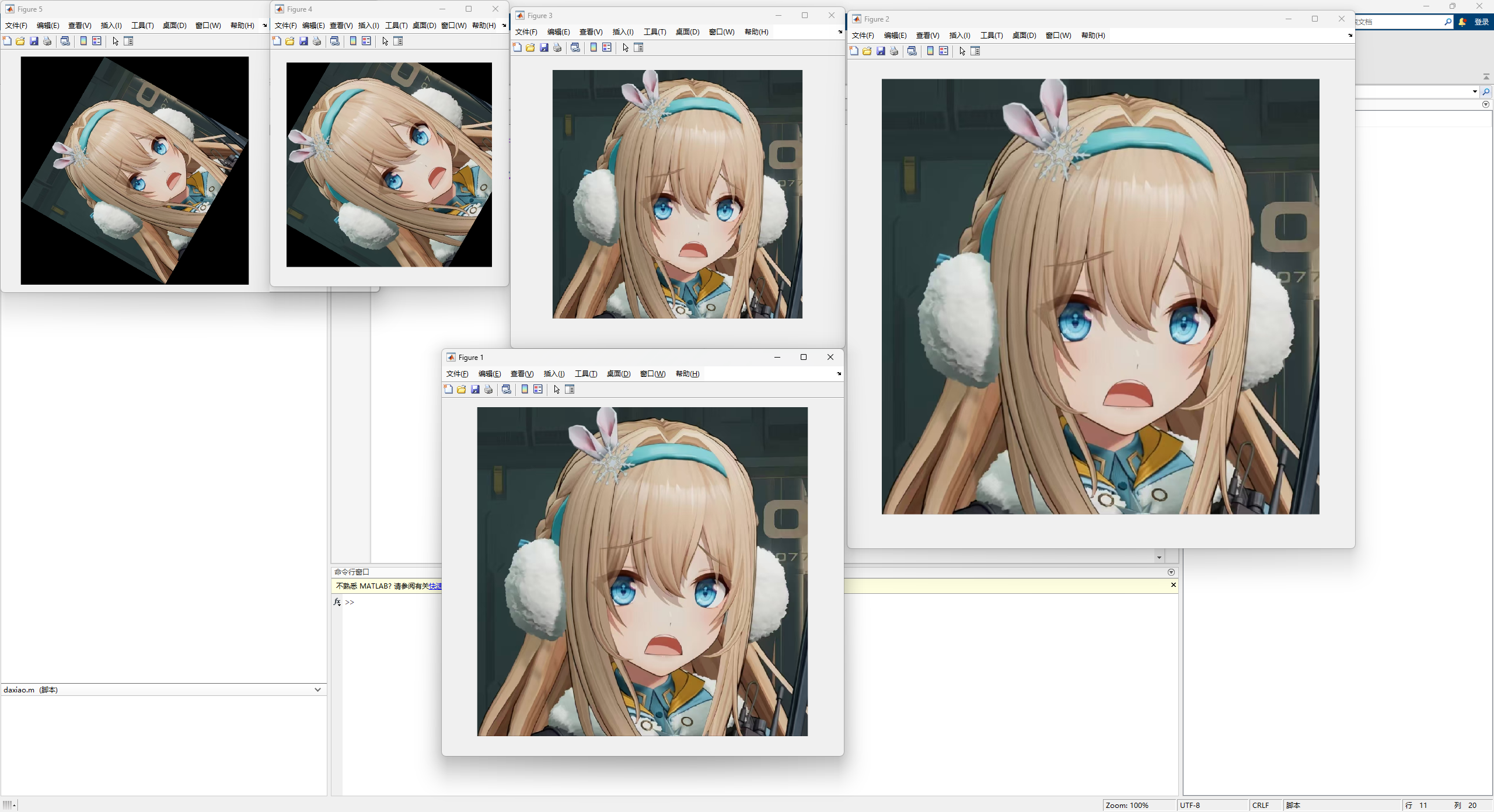
图像大小以及旋转操作

1
2
3
4
5
6
7
8
9
10
11
clc;clear;
I = imread('C:\Users\X.J\Desktop\BlogFile\themes\next\source\images\avatar.jpg');
Id = imresize(I,1.5);
Ix = imresize(I,0.5);
Iz = imrotate(I,60,"bilinear",'crop'); %保持分辨率,不完整显示图像
Izz = imrotate(I,60,"bilinear",'loose'); %完整显示图像
figure,imshow(I);
figure,imshow(Id);
figure,imshow(Ix);
figure,imshow(Iz);
figure,imshow(Izz);

分别是原图,大1.5,小1.5,旋转保留原分辨率,旋转保留图像
img2

图像读写

1
2
3
4
5
6
7
8
9
clc;clear;
I = imread('C:\Users\X.J\Desktop\BlogFile\themes\next\source\images\avatar.jpg');
Id = imresize(I,[256 256]);
figure,imshow(I);
figure,imshow(Id);
imwrite(Id,'1.png','png');
imwrite(Id,'1.bmp','bmp');
imwrite(Id,'1.jpg','jpg');
imwrite(Id,'1.tif','tif');

能做到图片类型的转换,有点意思

图像灰度,黑白等操作

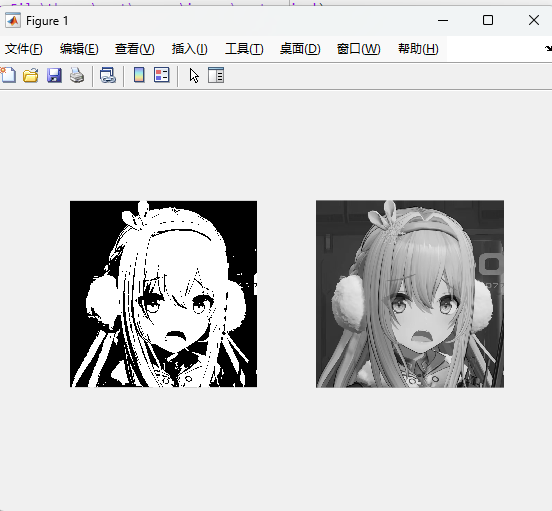
二值与灰度

1
2
3
4
5
6
7
8
clc;clear;
I = imread('C:\Users\X.J\Desktop\BlogFile\themes\next\source\images\avatar.jpg');
J1=im2bw(I);%图像二值化
subplot(1,2,1);
imshow(J1); %显示二值图像
J2=rgb2gray(I);%图像灰度
subplot(1,2,2);
imshow(J2); %显示灰度图像

img3

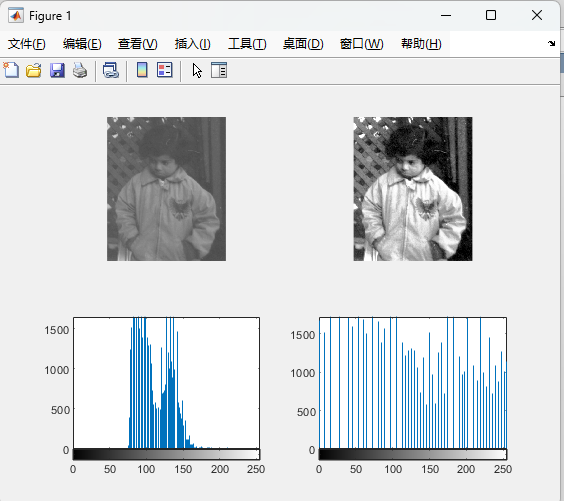
直方图与均衡化

1
2
3
4
5
6
7
8
9
10
11
clc;clear;
I = imread('https://img2023.cnblogs.com/blog/1660950/202308/1660950-20230826181216447-2060274134.png');
subplot(221);
imshow(I);
I2 = histeq(I); %均衡化
subplot(222);
imshow(I2);
subplot(223);
imhist(I); %生成直方图
subplot(224);
imhist(I2);

img4

灰度变换

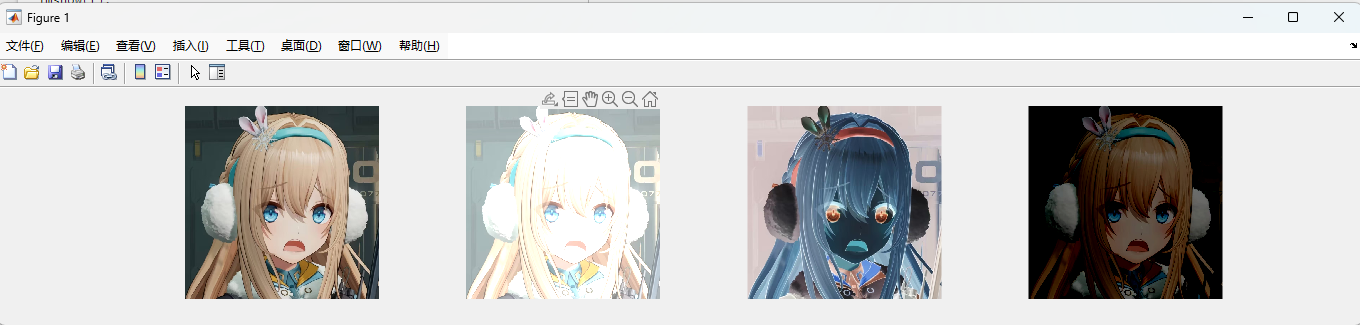
主要是imadjust的使用,第一个括号为原来的灰度范围,第二个为目标的范围
此外adjust还有不少玩法,https://blog.csdn.net/Ibelievesunshine/article/details/79958899

1
2
3
4
5
6
7
8
9
10
11
12
13
clc;clear;
f = imread('C:\Users\X.J\Desktop\BlogFile\themes\next\source\images\avatar.jpg');
g1=imadjust(f,[0 0.5],[0.5 1]);
g2=imadjust(f,[0 1],[1 0]);
g3=imadjust(f,[0.5 1],[0 0.5]);
subplot(141);
imshow(f);
subplot(142);
imshow(g1);
subplot(143);
imshow(g2);
subplot(144);
imshow(g3);

img5

噪声消除

RGB图像的噪声消除可能要放在后面再说了
以下都是灰度图像的噪声消除,话说这个不叫噪点吗。。。?

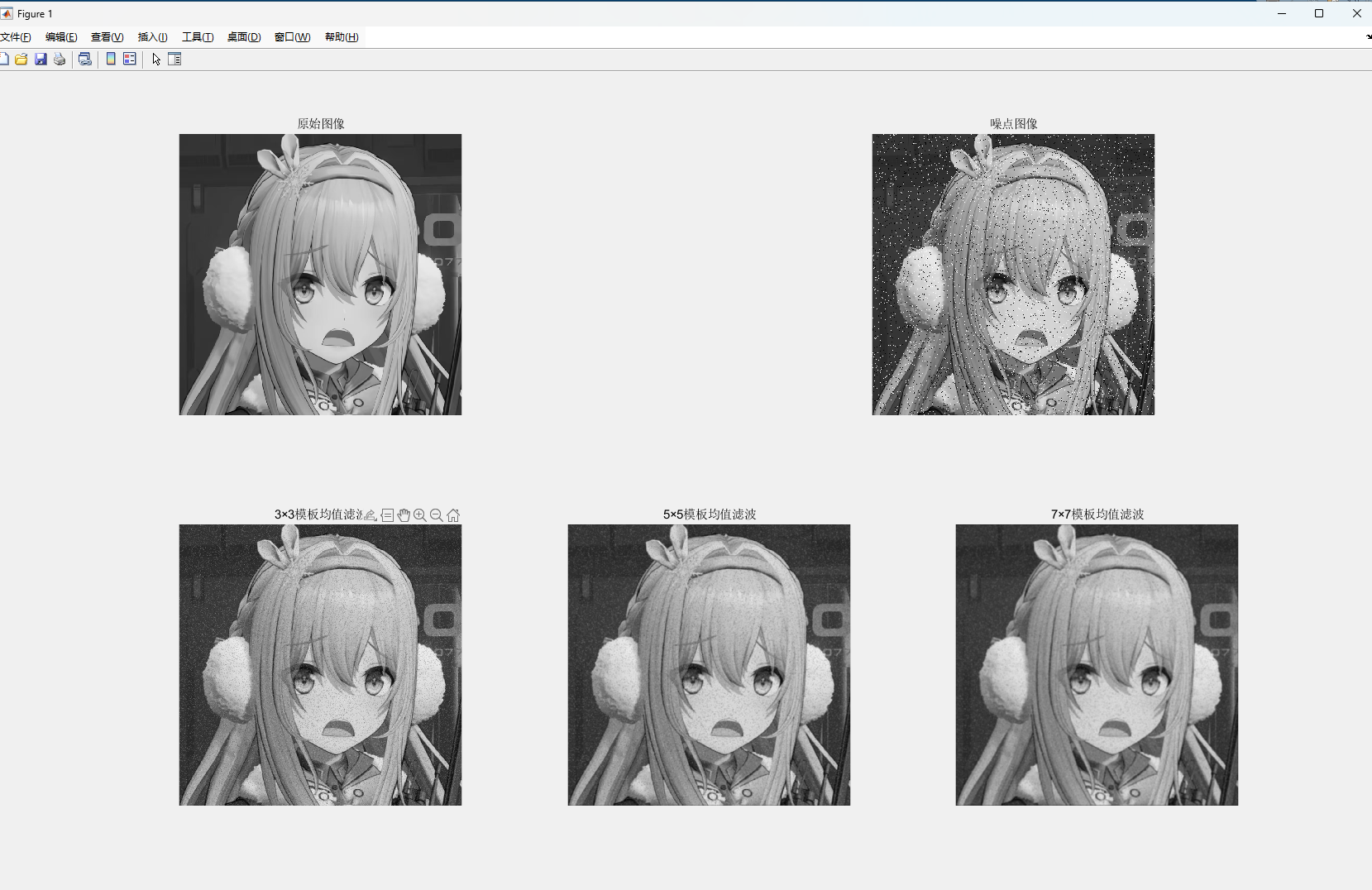
均值滤波

原理是将周围一定范围的像素点的值取平均,从而将噪声的影响减小

1
2
3
4
5
6
7
8
9
10
11
12
13
14
15
16
17
18
19
20
clc;clear;
I = imread('C:\Users\X.J\Desktop\BlogFile\themes\next\source\images\avatar.jpg');
I = rgb2gray(I);
J=imnoise(I,'salt & pepper',0.05);%给图像加入椒盐噪声
figure,
subplot(231),
imshow(I);
title("原始图像");
subplot(222),
imshow(J);
title("噪点图像");
K1=filter2(fspecial('average',3),J)/255;%进行3×3的均值滤波
K2=filter2(fspecial('average',5),J)/255;%进行5×5的均值滤波
K3=filter2(fspecial('average',7),J)/255;%进行7x7的均值滤波
subplot(234),imshow(K1);
title('3×3模板均值滤波');
subplot(235),imshow(K2);
title('5×5模板均值滤波');
subplot(236),imshow(K3);
title('7×7模板均值滤波');

img6

中值滤波

同理,取的是中值

1
2
3
4
5
6
7
8
9
10
11
12
13
14
15
16
17
18
19
20
clc;clear;
I = imread('C:\Users\X.J\Desktop\BlogFile\themes\next\source\images\avatar.jpg');
I = rgb2gray(I);
J=imnoise(I,'salt & pepper',0.05);%给图像加入椒盐噪声
figure,
subplot(231),
imshow(I);
title("原始图像");
subplot(222),
imshow(J);
title("噪点图像");
K1=medfilt2(J,[3 3]);%进行3×3的中值滤波
K2=medfilt2(J,[5 5]);%进行5×5的中值滤波
K3=medfilt2(J,[7 7]);%进行7×7的中值滤波
subplot(234),imshow(K1);
title('3×3模板均值滤波');
subplot(235),imshow(K2);
title('5×5模板均值滤波');
subplot(236),imshow(K3);
title('7×7模板均值滤波');

边缘检测

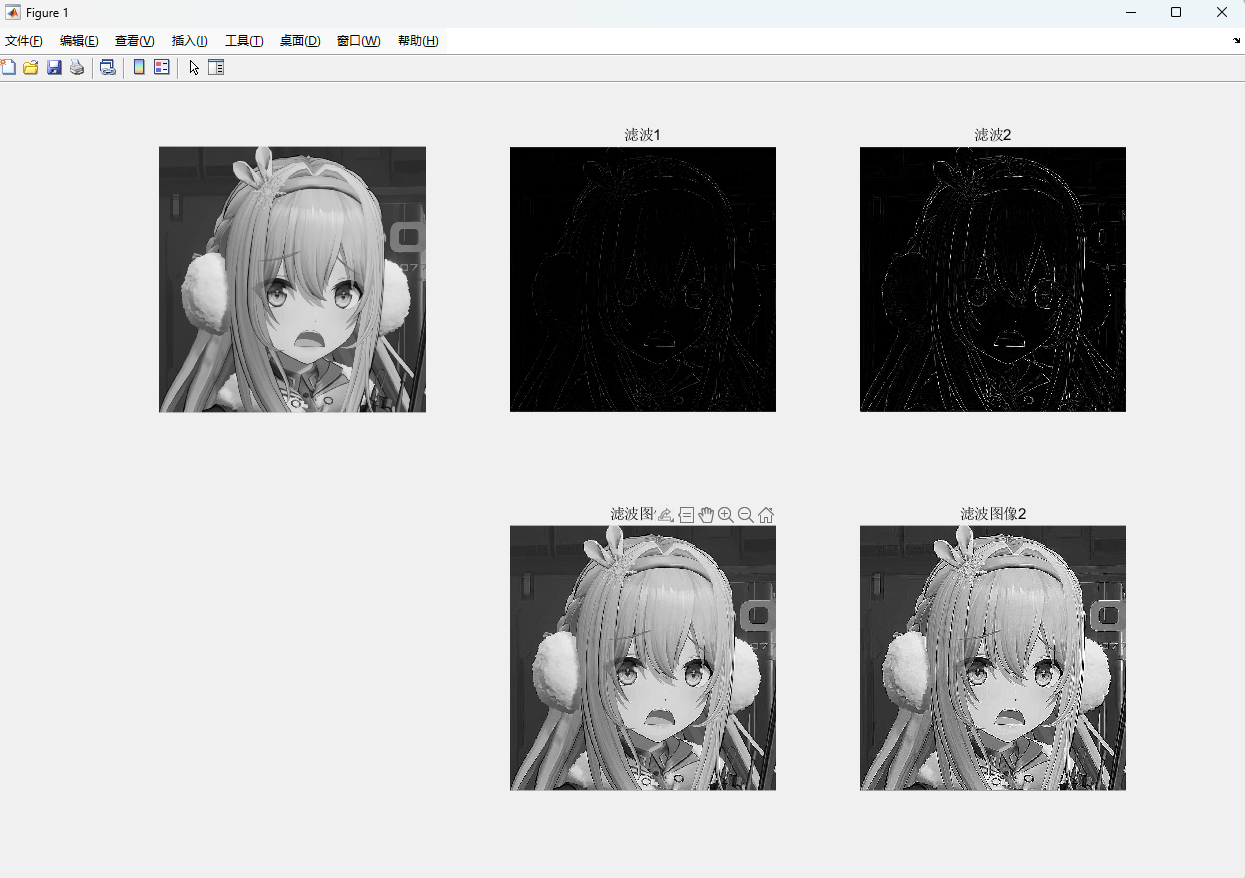
w4 w8这种是对应类型的滤波器,心里清楚即可
g4,g8是滤出来的, G4,G8是原图 减 滤出来的
感觉这个东西能玩那种模拟恐怖描边图的

1
2
3
4
5
6
7
8
9
10
11
12
13
14
15
16
clc;clear;
I = imread('C:\Users\X.J\Desktop\BlogFile\themes\next\source\images\avatar.jpg');
f = rgb2gray(I);
w4=fspecial('laplacian',0);
w8=[1 1 1;1 -8 1;1 1 1];
f=im2double(f);
g4=imfilter(f,w4,'replicate');
g8=imfilter(f,w8,'replicate');
G4=f-g4;
G8=f-g8;
subplot(231),
imshow(f);
subplot(232),imshow(g4),title("滤波1");
subplot(233),imshow(g8),title("滤波2");
subplot(235),imshow(G4),title("滤波图像1");
subplot(236),imshow(G8),title("滤波图像2");

img7

这个滤波2效果不错,来个颜色替换就能成了。

常见的边缘检测

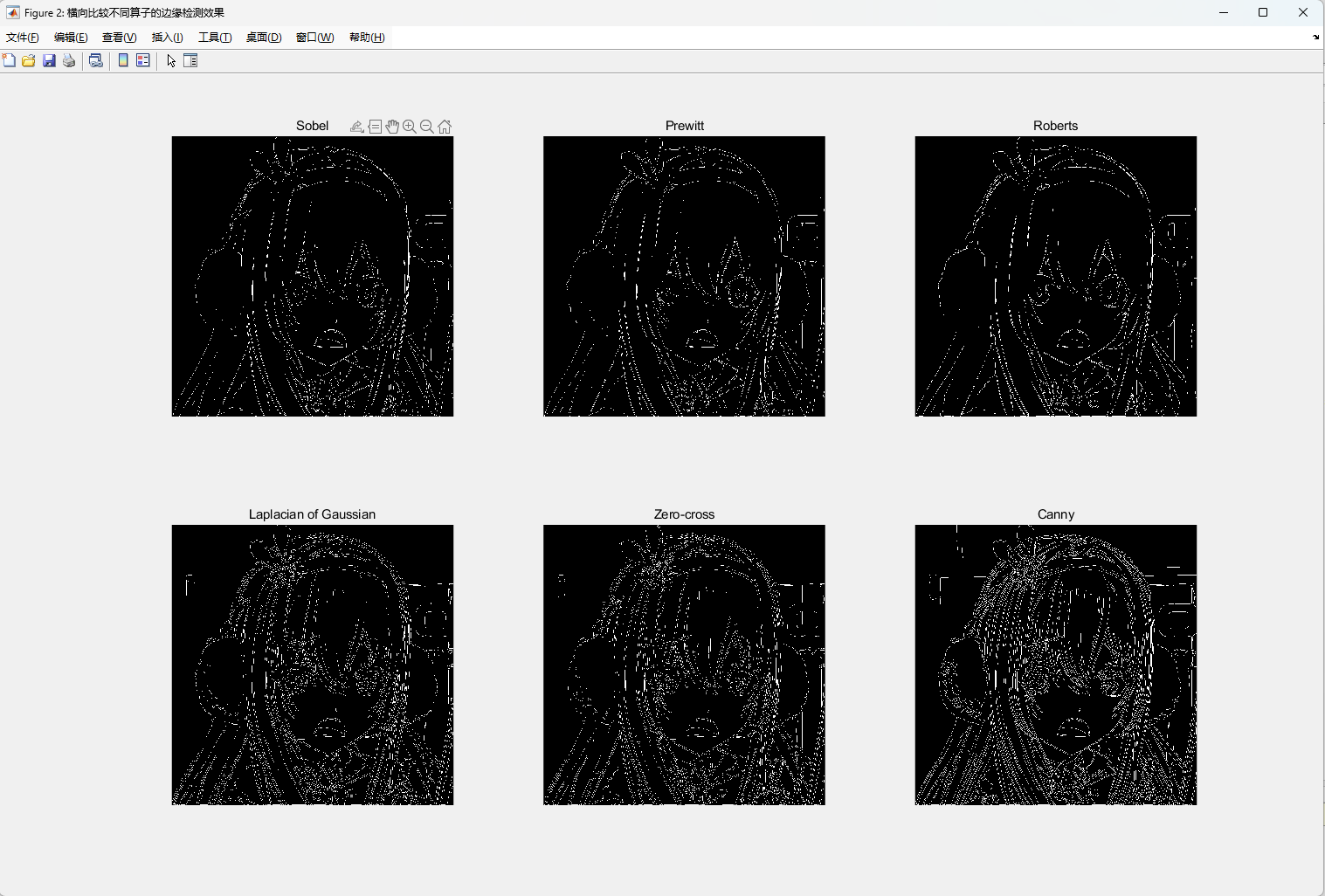
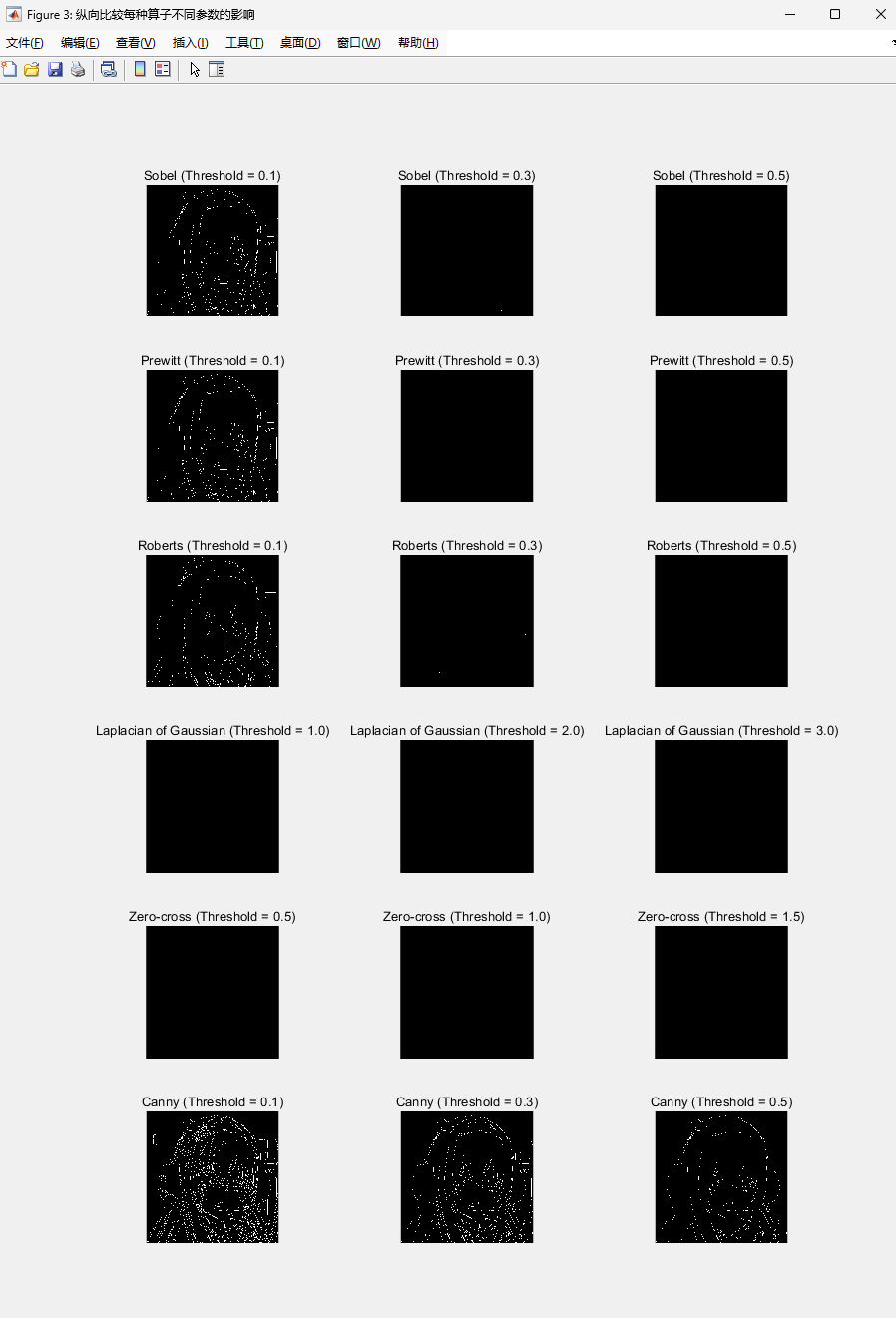
六种常见的边缘检测方式以及填入不同参数的效果,具体原理搞不懂。。。

1
2
3
4
5
6
7
8
9
10
11
12
13
14
15
16
17
18
19
20
21
22
23
24
25
26
27
28
29
30
31
32
33
34
35
36
37
38
39
40
41
42
43
44
45
46
clc;clear;
I = imread('C:\Users\X.J\Desktop\BlogFile\themes\next\source\images\avatar.jpg');
gray_img = rgb2gray(I);
imshow(gray_img);

% 定义边缘检测算子
operators = {'sobel', 'prewitt', 'roberts', 'log', 'zerocross', 'canny'};
operator_names = {'Sobel', 'Prewitt', 'Roberts', 'Laplacian of Gaussian', 'Zero-cross', 'Canny'};

% 定义算子参数
sobel_thresholds = [0.1, 0.3, 0.5];
prewitt_thresholds = [0.1, 0.3, 0.5];
roberts_thresholds = [0.1, 0.3, 0.5];
log_thresholds = [1, 2, 3];
zerocross_thresholds = [0.5, 1, 1.5];
canny_thresholds = [0.1, 0.3, 0.5];

% 存储算子及其参数
operators_params = struct('name', operators, 'thresholds', {sobel_thresholds, prewitt_thresholds, roberts_thresholds, log_thresholds, zerocross_thresholds, canny_thresholds});

% 横向比较不同算子的边缘检测效果
figure('Name', '横向比较不同算子的边缘检测效果');
for i = 1:numel(operators)
subplot(2, 3, i);
edges = edge(gray_img, operators{i});
imshow(edges);
title(operator_names{i});
end

% 纵向比较每种算子不同参数的影响
num_operators = numel(operators);
figure('Name', '纵向比较每种算子不同参数的影响');
for i = 1:num_operators
operator_name = operator_names{i};
params = operators_params(i).thresholds;
num_params_curr = numel(params);

for j = 1:num_params_curr
threshold = params(j);
edges = edge(gray_img, operators{i}, threshold);

subplot(num_operators, num_params_curr, (i-1)*num_params_curr+j);
imshow(edges);
title(sprintf('%s (Threshold = %.1f)', operator_name, threshold));
end
end

img8

img9

图像分割

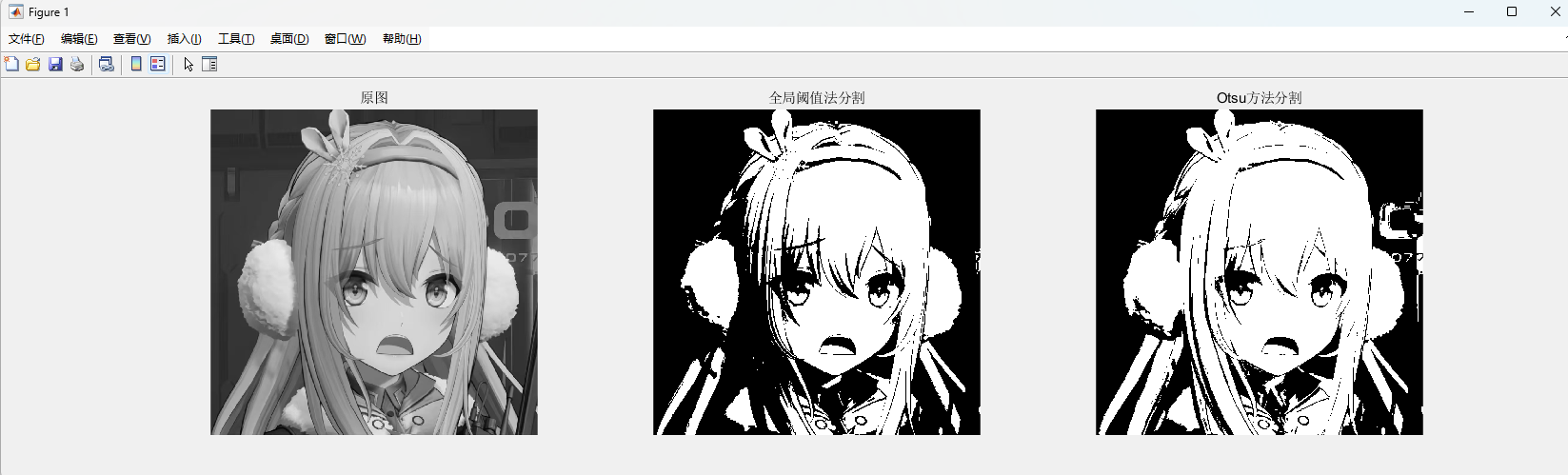
在这里先学习两种方法:
全局阈值法,即手动选择区间,然后非黑即白;
Otsu方法,通过graythresh函数找到这个合适的阈值(全自动的?)

1
2
3
4
5
6
7
8
9
10
11
12
13
14
15
clc;clear;
I = imread('C:\Users\X.J\Desktop\BlogFile\themes\next\source\images\avatar.jpg');
% 全局阈值法分割
global_thresh_img1 = rgb2gray(I)>144; %手动选择
% Otsu方法分割
otsu_img1 = im2bw(rgb2gray(I), graythresh(I));
subplot(131);
imshow(I);
title('原图');
subplot(132);
imshow(global_thresh_img1);
title('全局阈值法分割');
subplot(133);
imshow(otsu_img1);
title('Otsu方法分割');

img10

图像缩放

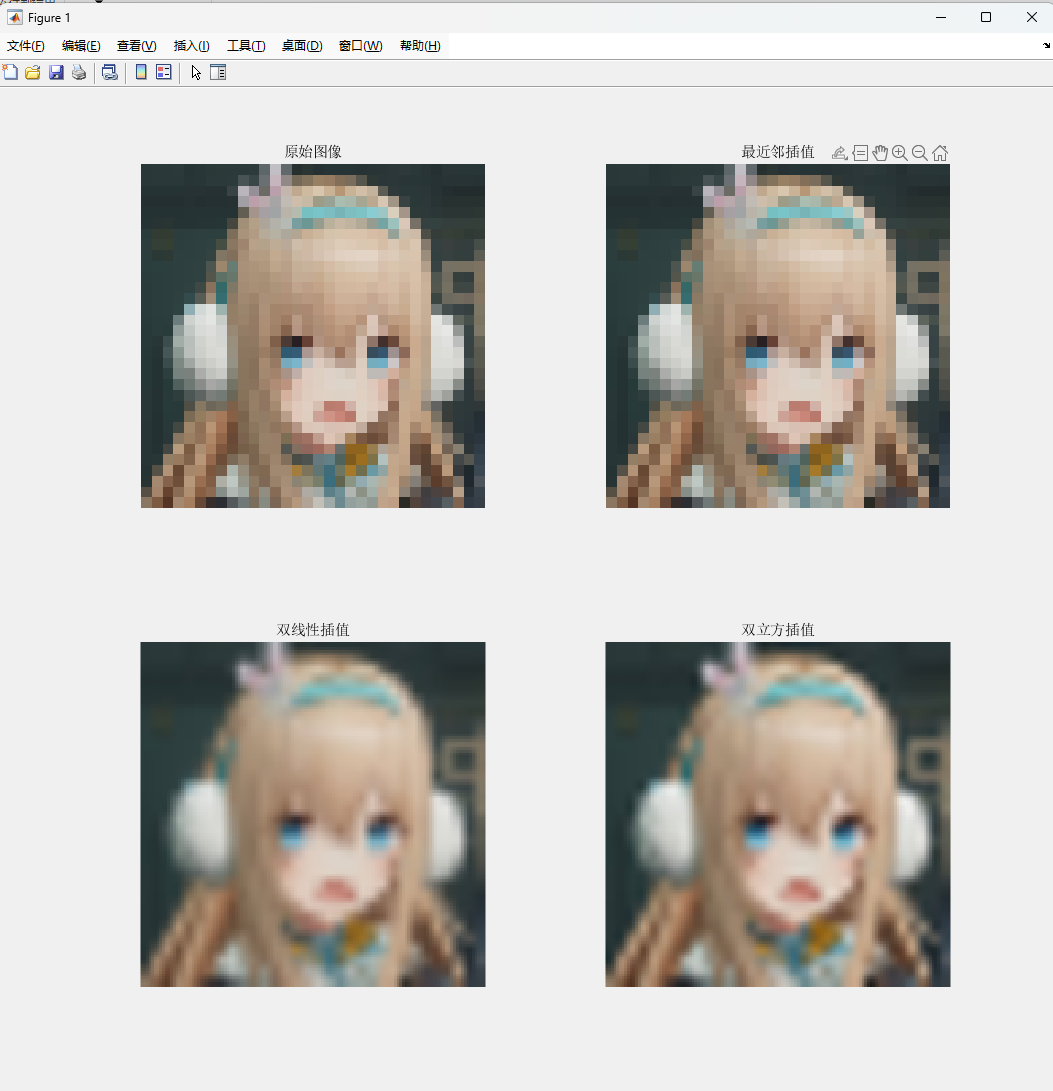
最近邻插值法:使用距离目标像素最近的源像素的颜色来填充目标像素的颜色值。
双线性插值法:使用目标像素周围的四个最近的源像素来计算目标像素的颜色值。
双立方插值法:使用目标像素周围的16个最近的源像素来计算目标像素的颜色值。
效率从高到低,图像质量从低到高。 (也许就是抗锯齿???)

1
2
3
4
5
6
7
8
9
10
11
12
13
14
15
16
17
18
19
20
21
22
23
24
25
clc;clear;
I = imread('C:\Users\X.J\Desktop\BlogFile\themes\next\source\images\favicon.png');
subplot(221);
imshow(I);
title('原始图像');
% 设置缩放比例,可为0.8,0.5,2,4,这里为4
scale = 4;

% 使用最近邻插值进行缩放
resized_image_nearest = imresize(I,scale, 'Method', 'nearest');
subplot(222);
imshow(resized_image_nearest);
title('最近邻插值');

% 使用双线性插值进行缩放
resized_image_bilinear = imresize(I, scale, 'bilinear');
subplot(223);
imshow(resized_image_bilinear);
title('双线性插值');

% 使用双立方插值进行缩放
resized_image_bicubic = imresize(I, scale, 'bicubic');
subplot(224);
imshow(resized_image_bicubic);
title('双立方插值');

一个32*32的icon图片的放大。可以看出双立方插值将图像放大后效果最好

img11

一些有趣的理解方式(这下看懂了):

抗锯齿技术 对应插值思想 性能消耗 质量
SSAA 双立方插值 非常高 极佳
MSAA 双线性插值 中等 很好
FXAA 智能滤波 很低 一般
TAA 多帧融合 很好